Why Is My TV Not Connecting to Wi‑Fi? Samsung & Android Fixes
Few things kill a planned movie night faster than a TV that suddenly says it cannot find your home Wi‑Fi. If every other screen in the house is still online, the fastest way forward is usually not a router reboot; it is the network menu on the TV itself, where Samsung’s own support guide starts by telling you to re-enter the Wi‑Fi password and check the TV’s network status (Samsung UAE Support).
First thing Samsung checks: Re-enter the Wi‑Fi password · Shortest fix: Two‑minute unplug · Last resort: Reset the TV’s network settings (Samsung UAE Support)
These six facts explain why the fix rarely starts with the router and almost always ends up inside the TV’s network settings.
| Label | Value |
|---|---|
| First Wi‑Fi check | Verify the network and re-enter the Wi‑Fi password under Settings > Network > Wi‑Fi (Samsung UAE Support) |
| Canada TV path | Menu > Settings > Connection > Network (Samsung Canada Support) |
| Weak 5 GHz signal | Connecting the TV to 2.4 GHz can help when 5 GHz range is short (Samsung Latin America Support) |
| Soft reset time | Unplug the TV for about 2 minutes before retrying (Samsung Levant Support) |
| Manual wireless setup | Select the network, enter the password, and select Done (Samsung Levant Support) |
| DNS fallback | Google 8.8.8.8 / 8.8.4.4 or Cloudflare 1.1.1.1 / 1.0.0.1 (Samsung US Support) |
At a glance
Check
Saved Wi‑Fi password
Listen
2.4 GHz vs 5 GHz
Reset
Network settings
Test
Google or Cloudflare DNS
Samsung keeps repeating the same instruction across regions: make the TV forget the wrong network information, then let it join the network again as new.
Why Does Your TV Lose Wi‑Fi While Everything Else Is Online?
When an iPhone, laptop, and TV sit on the same network but only the TV refuses to connect, the home router is technically reachable. The problem is the TV’s connection to it, not your internet service.
Samsung’s first instruction is the same on page after page: go into the TV’s network settings and re-enter the Wi‑Fi password (Samsung UAE Support). That one step rules out the two most common issues: a silent password change or a hidden special character.
- The TV saved the wrong password. Samsung support says to verify the network settings and re-enter the Wi‑Fi password (Samsung UAE Support).
- The TV prefers a signal it cannot hold. 5 GHz is faster but has shorter range. Samsung notes that connecting to 2.4 GHz can help when the 5 GHz band is weak (Samsung Canada Support).
- The TV’s saved network state is stale. A two‑minute unplug gives the TV’s Wi‑Fi radio time to clear saved errors (Samsung UAE Support).
- Nearby electronics can crowd the same band. Samsung’s regional support guides place interference alongside the usual Wi‑Fi causes (Samsung Latin America Support).
The clue is consistency. When other devices in the house work fine, the outage is not your internet plan; it is the TV’s saved network record. Samsung’s support order is built to delete that record before you ever need a service call.
How to Fix a Samsung TV That Won’t Connect to Wi‑Fi
Use Samsung’s troubleshooting order instead of jumping straight to a reset. Each step takes about two minutes and avoids a full factory reset.
- Power‑cycle the TV and router. Unplug the TV’s power cable for about two minutes while the router also restarts (Samsung UAE Support).
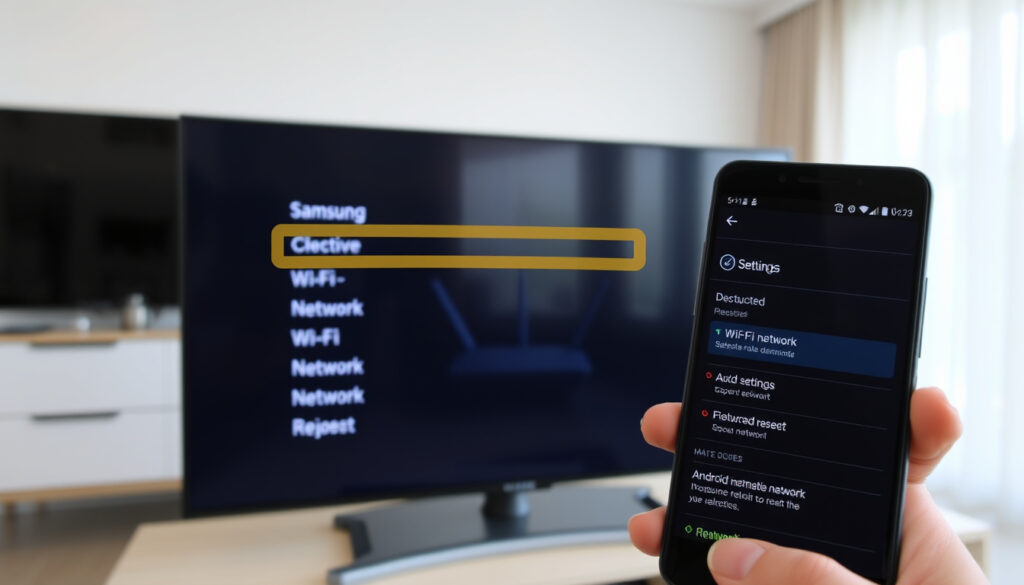
- Re‑enter the Wi‑Fi password. Go to Settings > All Settings > Connection > Network, select your network, and type the password again (Samsung Latin America Support).
- Connect to 2.4 GHz if the TV is far from the router. Samsung’s Canada guide notes that 2.4 GHz can work where 5 GHz drops (Samsung Canada Support).
- Run the TV’s network check. Samsung Levant’s guide points you to Menu > Settings > Connection > Network (Samsung Levant Support).
- Reset the TV’s network settings. This clears saved Wi‑Fi passwords so the TV asks for the network key again (Samsung UAE Support).
- Change DNS if the network test fails at the internet stage. Samsung US support lists Google 8.8.8.8 / 8.8.4.4 and Cloudflare 1.1.1.1 / 1.0.0.1 as manual options (Samsung US Support).
- Update the TV software, then retry. Firmware updates are part of Samsung’s normal Wi‑Fi troubleshooting path (Samsung UAE Support).
Notice what Samsung does not tell you to do first: it never starts with a factory reset. The strategy is to give the TV a clean, current network record before you chase firmware or call support.
What Samsung’s Support Pages Actually Recommend
Across Samsung’s regional support centers, the page headlines are almost identical. That consistency tells you the fix is standard.
“How to fix Samsung TV Wi‑Fi not working”
Samsung UAE Support
“Solving Wi‑Fi connection issues on your Samsung TV”
Samsung US Support
Both guides follow the same logic: check the network, reset the saved network, update if needed, then let the TV rejoin the network from a clean state.
Samsung US also publishes a dedicated troubleshooting article for TVs that will not find or connect to a Wi‑Fi network (Samsung US Support). That should be your cue that a TV behaving differently from your phone is a known issue, not a faulty unit.
Confirmed Fixes vs. Common Misconceptions
Samsung’s support pages are consistent, and they make the boundaries clear.
- Confirmed: Re‑entering the Wi‑Fi password fixes most password and security settings issues (Samsung Levant Support).
- Confirmed: A two‑minute unplug clears the TV’s current network state (Samsung UAE Support).
- Confirmed: Resetting network settings clears saved passwords and forces a clean join (Samsung UAE Support).
- Misconception: Rebooting the router will fix a TV that saved the wrong password. The router can be perfect while the TV refuses it.
- Misconception: A factory reset is the first TV Wi‑Fi fix. Samsung’s own order never puts a factory reset first.
If the TV can see the network but will not join it, the password or the network record is the problem. If the TV cannot see the network at all, test the 2.4 GHz band before you change anything else.
Related reading: Samsung TV not connecting to WiFi or the internet – troubleshooting · How to fix Samsung TV Wi‑Fi not working
samsung.com, asurion.com, currys.co.uk, samsung.com, samsung.com, samsung.com, samsung.com, whizz-experts.com
Frequently Asked Questions
Why does my TV say “Network not found” when other devices connect fine?
Samsung’s support path treats that as a saved‑network problem first. Re-enter the Wi‑Fi password, check the 2.4 GHz band, and run the TV’s network test (Samsung UAE Support).
Why does my Samsung TV keep losing Wi‑Fi after a reset?
The TV may be reconnecting with saved old information. Go into the network menu, select the wireless network, re-enter the password, and select Done (Samsung Levant Support).
Why is my TV connected to a network but not getting the internet?
That is usually a DNS issue. Samsung US support lists Google 8.8.8.8 / 8.8.4.4 and Cloudflare 1.1.1.1 / 1.0.0.1 as manual DNS options (Samsung US Support).
Does resetting network settings delete my apps?
No. A network reset clears saved Wi‑Fi passwords and connection settings, not installed apps. Samsung includes this step before a software update in its Wi‑Fi guide (Samsung UAE Support).
Why does my TV connect to a 2.4 GHz network but not a 5 GHz one?
Samsung Latin America notes that 5 GHz has shorter range. If the TV is too far from the router, it may see the 2.4 GHz network as the stronger option (Samsung Latin America Support).
Is a factory reset ever necessary?
Only after the normal order fails: re-enter the password, switch bands, reset network settings, change DNS, and update the TV software. Samsung’s support pages do not list a factory reset as the first or second step (Samsung UAE Support).
Short version: if your TV can see the network but will not join it, start with the password. If it cannot see the network at all, test the 2.4 GHz band before you reset anything else.
More related posts