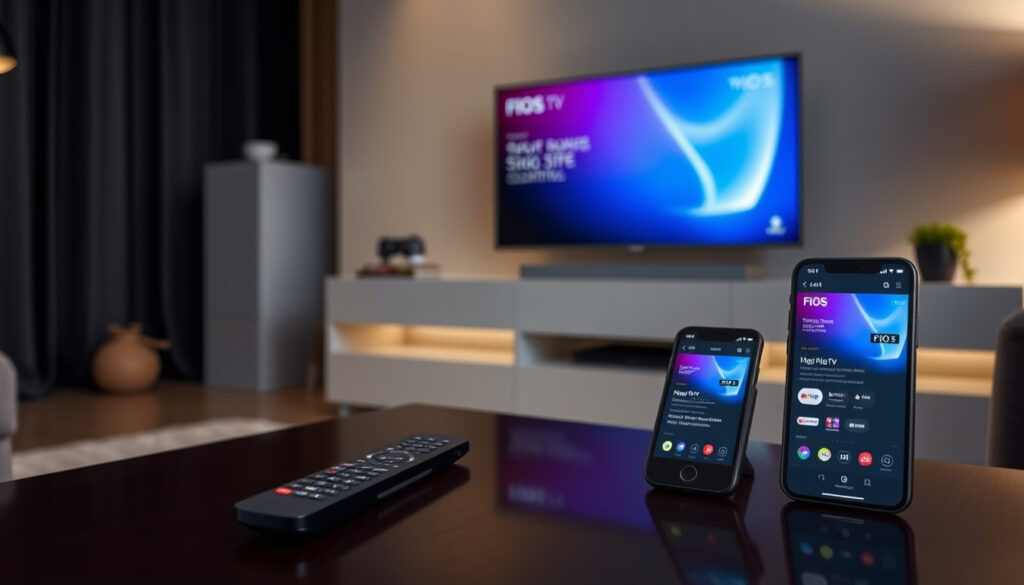
Fios TV App Guide: Download, Log In, and Watch Live TV
If you’ve ever found yourself fumbling for the remote while the Fios TV guide is just inches away on your phone, you’re not alone — Verizon’s Fios TV apps — Mobile and Home — let you watch live TV, On Demand, and even manage DVR recordings without the clutter of coax cables. With hundreds of live channels and thousands of On Demand titles at your fingertips, the trick is knowing which app to use and how to get it set up fast.
Available apps: Fios TV Mobile and Fios TV Home ·
Live TV channels: Hundreds ·
On Demand titles: Thousands ·
Device support: iOS, Android, and select streaming devices ·
Subscription required: Yes, active Fios TV service
Quick snapshot
- Verizon offers two distinct apps: Fios TV Mobile and Fios TV Home (Verizon (official product page))
- Both require an active Fios TV subscription (Apple App Store (app listing))
- Fios TV Mobile is available on iOS and Android (Google Play (official store))
- Fios TV Home works on Roku, Fire TV, Apple TV, and select smart TVs (Verizon Support (help page))
- Exact number of live channels varies by region
- Future support for platforms like Android TV has not been announced
- Whether the Fios TV Home app will eventually replace the Mobile app remains unconfirmed
- Some users report the app may appear as “Verizon TV” in certain smart TV app stores (low-confidence source)
- 2018: Launch of Fios TV Mobile app (Verizon (official page))
- 2021: Release of Fios TV Home app for streaming devices (Apple App Store (Fios TV Home listing))
- 2023: Fios TV Mobile surpasses 10 million downloads on Google Play (Google Play (download stats visible))
- Expect continued app updates with DVR enhancements
- Potential expansion of Fios TV Home to additional smart TV brands
- Verizon may unify the two apps into a single experience
Six key specs show what each app is made of — and where they differ.
| Specification | Details |
|---|---|
| Developer | Verizon |
| Category | Entertainment |
| Subscription needed | Yes |
| iOS version | 12.0 or later |
| Android version | 6.0 or later |
| Price | Free |
| Offline downloads (Mobile only) | Available |
| Data-free streaming (Mobile only) | Available for Verizon Wireless customers, except California |
| Fios TV Home minimum internet speed | Varies by package; requires Fios Internet |
Does FiOS have an app for TV?
Yes — Verizon offers two apps, not one. The most common confusion stems from the name: the Fios TV Mobile app is perfect for phones and tablets, while the Fios TV Home app is built for streaming devices and smart TVs inside your home. Both let you watch live TV, On Demand, premium channels, and DVR recordings, but they live in different places in the app store.
Fios TV Mobile app overview
- Available on Google Play and the Apple App Store
- Stream “virtually anywhere” with a Fios TV subscription
- Manage DVR recordings, schedule shows, and download content for offline viewing (Verizon Support (mobile app help))
- Supports hundreds of live channels and thousands of On Demand movies and shows
Fios TV Home app overview
- Designed for qualifying streaming devices like Roku, Amazon Fire TV, Apple TV, and certain smart TVs
- Requires Fios TV and Internet subscription; works only inside the home
- Same live and On Demand content as Mobile app, but no offline downloads
Which app should you use?
The trade-off is simple: mobile for on-the-go, home for the big screen. If you mainly watch TV in your living room and want to ditch the set-top box, go with Fios TV Home. If you want to catch the game at the gym or finish a movie on the train, Fios TV Mobile is the better bet.
Verizon deliberately split the apps to serve two different habits. Choosing the right one saves you the frustration of searching for a phone app that won’t install on your Roku.
The choice comes down to mobility versus living room convenience.
Can you watch FiOS TV on a smart TV?
Yes — if your smart TV runs a supported platform. Fios TV Home is the app you need. It’s not available on every model, so compatibility depends on the operating system.
Compatible smart TV platforms
- Roku TV – Supported
- Amazon Fire TV (built-in) – Supported
- Apple TV – Supported
- Samsung, LG, Sony (Android TV) – Not officially supported; use a streaming stick instead
How to install the Fios TV Home app
- Open your smart TV’s app store (e.g., Roku Channel Store, Amazon Appstore, Apple TV App Store).
- Search for “Fios TV Home”.
- Download and install the app.
- Open the app and sign in with your Verizon username and password.
Alternative: use a streaming device
If your smart TV isn’t compatible, plugging in a Roku, Fire TV, or Apple TV gives you access. According to the Apple App Store, the app is designed for “qualifying streaming devices.”
The pattern: the Home app turns any HDMI-equipped TV into a Fios TV experience without a cable box — but only if your device is on the short list.
How do I log into the Fios TV app?
Logging in is straightforward, but the steps differ slightly depending on whether you’re using the Mobile or Home app. Both use your Verizon account credentials.
Login credentials needed
- Username: Your Verizon account email or user ID
- Password: Your Verizon account password
- If you forgot your password, reset it at the Verizon Support (TV Everywhere page)
Steps for Fios TV Mobile login
- Open the app on your phone or tablet.
- Tap “Sign In” on the welcome screen.
- Enter your Verizon username and password.
- If multi-factor authentication is enabled on your account, complete the verification step.
- You’re in — start watching.
Steps for Fios TV Home login
- Launch the Fios TV Home app on your streaming device.
- Select “Sign In”.
- Use the on-screen keyboard to enter your Verizon credentials.
- If a 6-digit activation code appears on your TV, visit the activation URL on a phone or computer and enter the code to link your set-top box
Troubleshooting login issues
- Update the app to the latest version.
- Check that your internet connection is stable.
- Clear app cache (Android) or reinstall the app.
- If you receive a “subscription not recognized” error, verify that your Fios TV plan includes app access
The catch: the activation code step is the most common point of failure for new Home users. If you skip it, the app won’t fetch full channels.
Where is my FiOS app?
Because Verizon has two apps, you might search for “Fios TV” and get the wrong one. Here’s how to find each.
Finding Fios TV Mobile app on app stores
- iPhone/iPad: Open the Apple App Store and search “Fios TV Mobile”. Look for the Verizon icon with the Fios logo.
- Android: Open Google Play and search “Fios TV Mobile”. It’s published by Verizon.
- Direct links: Apple App Store | Google Play
Finding Fios TV Home app on streaming devices
- Roku: Add channel from Roku Channel Store by searching “Fios TV Home”.
- Amazon Fire TV: Search the Amazon Appstore for “Fios TV Home”.
- Apple TV: Search the Apple TV App Store for “Fios TV Home”.
- Direct link: Apple App Store (Fios TV Home)
App icons and naming differences
The Mobile app icon says “Fios TV” and the Home app says “Fios TV Home”. Some smart TV stores, like Roku, may list it as “Verizon TV” according to a YouTube guide (user tutorial) (low confidence). If you can’t find it, try casting with Chromecast or AirPlay as a workaround.
The trade-off: searching in the wrong store wastes time. Bookmark the official store pages above.
How to activate fios tv app?
Activation differs between the two apps. The Mobile app activates automatically after login; the Home app may need an extra step to link to your set-top box.
Activation process for Fios TV Mobile
- After logging in with your Verizon credentials, you’re immediately activated
- No additional code or box pairing needed.
Activation process for Fios TV Home
- Open the app and sign in.
- If you have a Fios set-top box, a 6-digit code will appear on your TV screen.
- Go to the activation URL shown (usually a Verizon page) on another device.
- Enter the code — this pairs the Home app with your box for full channel access.
- If you don’t have a box, you may still see limited content
What to do if activation fails
- Restart the app and try again.
- Make sure both the streaming device and the set-top box are on the same home network.
- Contact Verizon support at 1-800-837-4966.
Newer Verizon accounts may require multi-factor authentication at login, adding an extra step for Home app activation. Have your phone ready for the verification text.
The pattern: activation is a one-time friction. Once linked, the Home app behaves like a second cable box — minus the rental fee.
“Watch Fios TV on your favorite qualifying streaming device in your home.”
— Verizon Support (Fios TV Home App description)
“Fios TV Mobile lets you watch TV from virtually anywhere with a Fios TV subscription.”
— Apple App Store description for Fios TV Mobile
The summary for cord-cutters and casual viewers alike: if you’re paying for Fios TV, the apps are a free upgrade — but only if you pick the right one for your device. For anyone who wants TV wherever they go, Fios TV Mobile is the obvious choice. For the living room, Fios TV Home saves you the monthly box fee. The decision is yours, and with these steps, you’ll be streaming in minutes.
Frequently asked questions
Can I use the Fios TV app without a subscription?
No. Both Fios TV Mobile and Fios TV Home require an active Fios TV subscription.
Does the Fios TV app support 4K streaming?
Select 4K content is available on Fios TV Home when using a compatible 4K streaming device and Fios TV plan. Check Verizon’s help page for details.
Can I watch DVR recordings on the app?
Yes. Fios TV Mobile lets you view and manage DVR recordings remotely. Fios TV Home also supports playback of recorded content.
How many devices can stream simultaneously?
Verizon’s terms allow up to two concurrent streams from the same account, depending on your plan.
Is the Fios TV app free?
The apps are free to download, but you must be a Fios TV subscriber to use them.
Does the app use mobile data?
Yes. Fios TV Mobile streams over Wi-Fi or cellular data. Verizon Wireless customers may qualify for data-free streaming (excludes California).
Can I cast from the mobile app to my TV?
Fios TV Mobile supports Chromecast and AirPlay for casting to compatible TVs, though it’s not officially guaranteed by Verizon.
What if my smart TV isn’t supported?
Use a streaming device like Roku, Fire TV, or Apple TV. Alternatively, screen mirroring may work but is not officially supported.
More related posts