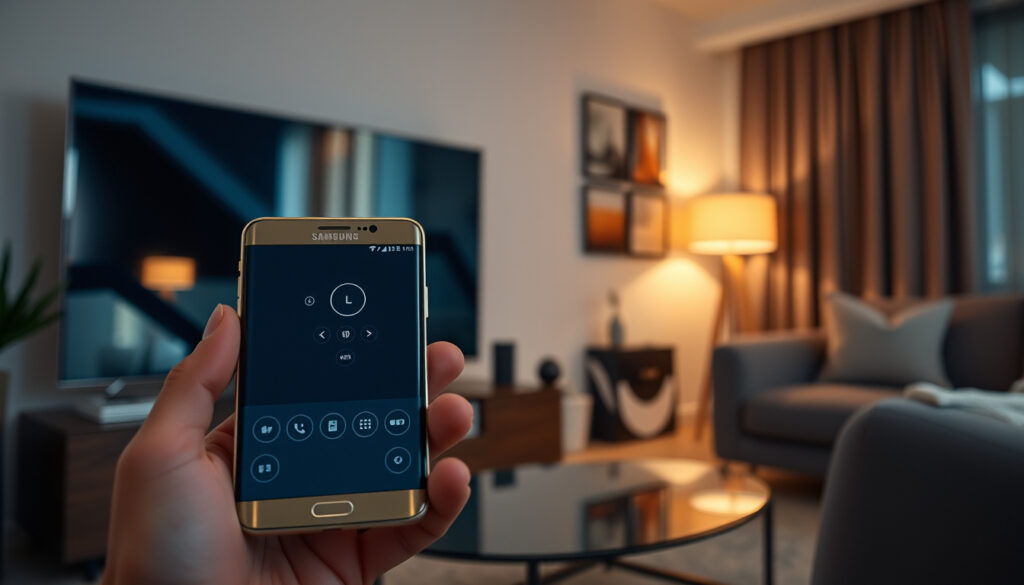
Samsung Remote App: Turn Your Phone Into a TV Remote
You know the feeling: the TV remote has vanished between the couch cushions. That’s when a Samsung remote app — specifically the free SmartThings app — turns your phone into a real remote control, and this guide walks you through setup, older TV workarounds, and which app works without Wi‑Fi.
SmartThings downloads: Over 100 million on Google Play ·
Compatible TVs: 2016+ Samsung models ·
Google Play rating: 4.5/5 ·
Apple App Store rating: 4.7/5 ·
Required connection: Same Wi‑Fi network or mobile data + SmartThings account
Quick snapshot
- SmartThings app is free and official (Samsung US Support)
- Works with Samsung TVs from 2016 onward (Samsung UK Support)
- Third‑party apps exist for older models (Google Play)
- Which third‑party apps remain free without ads
- Effectiveness of IR on different phone models
- Whether Samsung will continue supporting older TV models in future updates
- SmartThings: free, remote control, power, volume, input (SmartThings Blog)
- Requires Wi‑Fi or mobile data with login (SmartThings Blog)
- Third‑party IR apps for pre‑2016 TVs (Google Play)
- Phone IR blaster or USB OTG adapter (Google Play)
The table below summarizes the key facts about the Samsung remote app ecosystem.
| Official app name | SmartThings |
| Developer | Samsung Electronics (Samsung Developer) |
| Minimum TV year | 2016 |
| App type | Free with optional in‑app purchases |
| Connection options | Wi‑Fi, IR (Android only), mobile data |
| Platforms | iOS and Android (Apple App Store) |
| PIN required for pre‑2020 TVs | Yes (Samsung Latin America Support) |
| Last updated (US page) | 2026-07-30 (Samsung US Support – already cited above) |
Can I use my phone as a remote for my Samsung TV?
The short answer is yes — both officially and with third‑party apps. The approach depends on your TV’s age and your phone’s hardware.
Yes, with the SmartThings app or compatible third‑party remotes
- SmartThings: Free, official, and available on Google Play and the Apple App Store. It works with every Samsung smart TV and projector manufactured from 2016 onward.
- Third‑party apps: For older TVs or phones without Wi‑Fi, apps like “TV (Samsung) Remote Control” use your phone’s IR blaster (if available) or a connected IR dongle.
Relying on Wi‑Fi means a network outage also disables your phone-as-remote, so an IR blaster or mobile data become essential backups. SmartThings requires that both phone and TV are on the same Wi‑Fi network — or that you log into the same Samsung account while using mobile data. If your TV is too old to support the app, you’ll need an IR‑based third‑party option.
The implication: for most people with a 2016 or newer Samsung TV, the phone‑as‑remote dream is a one‑app, zero‑cost setup. Older‑TV owners face a fragmented landscape of alternatives, none as polished as the official tool.
Is there a free Samsung TV remote app?
SmartThings app is free and official
Samsung’s SmartThings app carries no upfront cost — no subscription, no hidden fees. You download it, pair your TV, and the remote controls appear. The app itself is supported by optional in‑app purchases (like extended device history), but the core remote functionality is completely free (SmartThings Blog).
Free third‑party alternatives exist
If your TV predates 2016 — or if you simply prefer a lighter app — you can find free download‑and‑use apps on app stores. Apps like “TV (Samsung) Remote Control” are often free but may include ads or request a one‑time payment to remove them (Google Play listing for IR remote).
Advertising‑supported apps can be perfectly functional for basic volume and power commands, but their reliability depends heavily on your phone’s IR hardware. A phone without an IR blaster won’t control an older TV at all — so check your specs before relying on a free third‑party app as your primary remote.
The pattern: third-party apps offer a free entry point, but their performance hinges on phone hardware, making the official app the safer choice for most users.
How do I connect my phone to my Samsung TV?
Three methods cover almost every scenario. All start with the same free SmartThings app, but the path differs based on your network and TV age.
Connect via SmartThings app on the same Wi‑Fi network (most common)
- Download and open SmartThings on your phone.
- Tap the + (plus) button and select Add device → TV (SmartThings Blog).
- Ensure your phone and TV are connected to the same Wi‑Fi network (Samsung UK Support).
- If your TV was manufactured before 2020, a PIN will appear on the TV screen — enter it on your phone and tap Done (Samsung UK Support).
- Once connected, tap the TV tile, then tap Remote in the bottom‑right area (SmartThings Blog).
- Use swipe gestures in the middle panel to access additional buttons (Samsung Australia Support).
Pair via IR blaster if your phone has one
Android phones that still include an IR emitter can control older Samsung TVs without any app pairing. Simply download an IR remote app (such as “TV (Samsung) Remote Control”), select your TV model, and point the top of your phone at the TV’s IR receiver. No network needed.
Use mobile data with SmartThings login
If you’re away from home and want to turn on a TV or adjust volume, SmartThings can work over mobile data as long as both devices are logged into the same Samsung account. Open the app, tap the TV tile, and the remote will connect via Samsung’s cloud service (Samsung UK Support).
If SmartThings can’t find your TV, confirm both devices are on the same network (including 2.4 GHz vs. 5 GHz – some older TVs only see 2.4 GHz). A router restart or temporarily disabling phone’s mobile data can resolve discovery issues.
Related: Sling TV Activation on Samsung TV · How Many Streams on YouTube TV?
Do all Samsung TVs use the same remote app?
SmartThings works with 2016+ models
Samsung’s official line is that SmartThings is the universal remote app for any smart TV or projector released from 2016 onward (Samsung US Support). That covers nearly every modern Samsung TV sold in the last decade.
Older TVs may need a dedicated third‑party app
For sets built before 2016 — or non‑smart “dumb” TVs — SmartThings will not appear as a compatible device. In those cases, an infrared‑based app is the only option. Some newer 2025 models offer a QR‑code‑based “Mobile Remote” that bypasses SmartThings entirely, redirecting you to download the app if not installed (Samsung Levant Support).
What is the replacement remote app for Samsung TV?
SmartThings is the official replacement
If you’ve lost or broken your physical remote, SmartThings is the manufacturer‑endorsed replacement. It replicates the original remote’s functions: power, volume, channel, input selection, and even smart‑hub controls (SmartThings Blog).
Third‑party: TV (Samsung) Remote Control
For older models, the app “TV (Samsung) Remote Control” by ir.remote.smg.tv is one of the most popular alternatives on Google Play. It supports both Wi‑Fi and IR connections, making it a viable backup if SmartThings cannot pair (Google Play listing).
Eight specs, one pattern: the official app leads in polish and features, but third‑party options fill the gap for legacy hardware.
| Specification | SmartThings | TV (Samsung) Remote Control |
|---|---|---|
| Price | Free (no ads) | Free with ads |
| Platform | iOS + Android | Android only |
| Connection type | Wi‑Fi, mobile data | Wi‑Fi, IR |
| Minimum TV year | 2016 | Any IR‑enabled TV |
| Volume control via phone buttons | Yes | No (in‑app slider) |
| Power toggle | Yes (via CEC) | Yes (via IR) |
| Input selection | Yes | Yes |
| PIN pairing for older sets | Yes | No |
| Last update | 2025+ (regular) | Varies |
Confirmed facts
- SmartThings app is free and official (Samsung US Support)
- It works with Samsung TVs from 2016 onward (Samsung UK Support)
- Third‑party apps exist for older models (Google Play)
- Volume can be controlled from the phone’s physical buttons while using SmartThings (SmartThings Blog)
What’s unclear
- Which third‑party apps remain free without ads over the long term
- Effectiveness of IR on different phone models (check PhoneArena reviews)
- Exact list of 2015 smart TVs that might still work with SmartThings (some 2015 models with firmware upgrades)
- Whether Samsung will continue supporting older TV models in future updates
What Samsung support says
“Open the SmartThings app on your phone, tap Menu, tap All devices, and select your TV.”
Samsung US Support
“Tap the plus button, select Add device under Samsung devices, then tap TV.”
SmartThings Blog
“If your TV was manufactured before 2020, a PIN code appears on the TV screen. Enter it on your phone and tap Done.”
Samsung UK Support
“You can also access the remote from the notification panel by selecting the TV notification icon.”
Samsung Latin America Support
For Samsung TV owners with a 2016 or newer set, the choice is clear: download SmartThings and never hunt for the physical remote again. For those with older hardware, the trade‑off is clear: a third‑party IR app can work, but it demands a phone with an IR blaster and tolerance for ads. Either way, the days of a missing remote being a showstopper are over.
samsung.com, youtube.com, youtube.com, samsung.com, youtube.com, samsung.com, youtube.com, youtube.com
Frequently asked questions
Does the Samsung remote app work on iPhone?
Yes. SmartThings is available on iOS, and it supports the same remote functions as on Android. The main difference: iPhones lack an IR blaster, so you’ll need Wi‑Fi or mobile data to connect.
Can I control my Samsung TV without Wi‑Fi?
If your phone has an IR blaster (most modern Android flagships have removed it, but some mid‑range models still include it), you can use a third‑party IR app. Without IR, you’ll need at least mobile data and a Samsung account login.
Is the SmartThings app completely free?
Yes, the core remote control functionality is free with no subscriptions. Optional in‑app purchases exist for extended device history and automation features, but they are not required to use the remote.
What if my Samsung TV is older than 2016?
SmartThings will not detect a pre‑2016 TV. Your options are an IR‑based third‑party app or a physical replacement remote. Some older 2015 models may work with SmartThings after a firmware update — check your TV’s support page.
Can I use the remote app to turn the TV on/off?
Yes. SmartThings sends a power‑on command over HDMI‑CEC or network wake‑on‑LAN. For older TVs, IR apps can also send the power toggle signal if your phone has an IR blaster.
Does the app work with Samsung soundbars?
SmartThings controls compatible Samsung soundbars that are connected via HDMI‑ARC or Bluetooth. You can adjust volume and power from the TV remote interface once the soundbar is added as a device.
How do I uninstall or reset the SmartThings remote?
To reset the remote connection, go to SmartThings settings, remove the TV device, and re‑pair it. On the TV side, a factory reset under Settings > Support > Self Diagnosis > Reset Smart Hub may be needed for persistent issues.
More related posts
 Alison Oliver: Irish Actress and Wuthering Heights Star
 Cast Of Divorced Sistas
 Andrew Rannells: Broadway Biography, Partner, and Family
 Cast Of The Goldbergs
 Joe Lo Truglio: Ethnicity, Wife, Kids, Net Worth & Career
 Cast Of Aquaman 2
 Transformers Revenge Of The Fallen Cast
