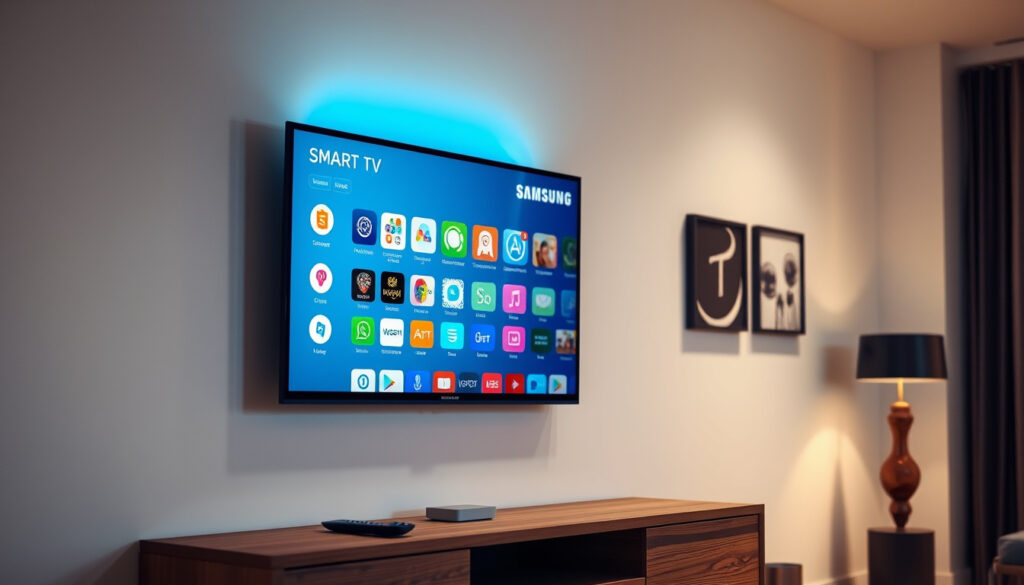
How to Add Apps to Samsung Smart TV: Step-by-Step Guide
There’s a moment that nearly everyone hits with a Samsung TV: you’re settled on the couch and want to add an app that isn’t on the home screen. The process is usually straightforward but can be confusing, especially since Samsung changed its app system over the years for TVs from 2016 onward.
Number of installable apps: Thousands available via the Samsung App Store · Official app source: Samsung App Store on the APPS panel · Appear on Home screen: Yes, after “Add to Home”
Standard Installation (2016+ Models)
- Press Home, go to APPS — Samsung US Support
- Search for app
- Select Install
Home Screen Pin
- Go to My Apps — Samsung UK Support
- Select app, press Options
- Choose Add to Home
Add Missing App Store
- Update TV software — Samsung Canada Support
- Check for model 2016+
- Contact Samsung if still missing
3rd-Party Apps
- Enable Unknown Sources — Samsung India Support
- Use Downloader app
- Install via USB
The table below summarizes the key specs for app installation across Samsung TV generations.
| Label | Value |
|---|---|
| Supported OS for app install | Tizen OS (2016+ models) |
| Primary app source | Samsung App Store on the APPS panel |
| Remote buttons needed | Home and directional pad only |
| Storage limit | Varies by model; not officially specified for app count |
| Home screen customization | All installed apps can be pinned via Options → Add to Home |
| App search location | Search icon in the top-right corner of the APPS panel |
| Unknown sources option | Available only on Android-based Samsung TVs (2015 and older) |
| Official app store name | Samsung App Store (on the APPS panel) |
| Troubleshooting step | Reset Smart Hub if apps disappear or won’t open |
| Last resort | Factory reset (data loss warning) |
How do I install apps on my Samsung TV?
The standard flow for installing apps on a Samsung Smart TV from 2016 onward centers on the APPS panel, which is the default landing point on the Home screen. Press the Home button on your remote, and you’ll land on a row of apps with the APPS button at the far left.
Navigate to the APPS panel on the Home screen
- Press the Home button on your remote to open the Smart Hub.
- The APPS panel appears as the default landing point on the Home screen for all Samsung Smart TVs.
- Select the APPS icon to open the full app management page.
This is the single most important step to remember. If you’re used to a phone or a computer, you might look for a “store” icon in the corner. On a Samsung TV, the store lives inside the APPS panel, and the panel is also where you manage everything you’ve already installed.
Use the Search icon in the top-right corner of the APPS panel
- Once inside APPS, look for the Search icon (a magnifying glass) in the top-right corner of the panel.
- Select it and type the name of the app you want to install.
- If the app is available for Tizen OS, it will appear in the search results.
Samsung’s official support page states that the APPS panel is the primary location for app management, and the search icon is a consistent element across recent models. If you don’t see a search icon, make sure you’re actually on the APPS panel and not just the Home row—older UI versions sometimes hide it until you scroll within the APPS page.
Select “Install” to download the app
- When you find the app in the search results, select it to open its details page.
- Choose Install (or “Get” on some models) and wait for the download to complete.
- Once installed, the app appears under My Apps in the APPS panel.
Most apps install in under a minute on a decent internet connection. If the Install button is greyed out or doesn’t respond, that’s usually a sign of a compatibility issue or a Smart Hub problem, not something on your end.
How to add apps to home screen Samsung?
Installing an app doesn’t automatically place it on the Home row—you have to add it to Home manually. This is a common point of confusion, especially for people who expect the TV to sort itself out. The official method works on every Tizen model and takes about ten seconds.
Find the app in “My Apps” or the app library
- Open the APPS panel again.
- Scroll to the My Apps section, which lists all installed apps.
- If you have many apps, you can also use the search bar—the search icon covers both store apps and installed ones.
The ‘My Apps’ section on the APPS panel lists every installed app, whether it came from the store or was preloaded. On some models, this section is labeled “My Apps” and on others it’s just the first row inside APPS. Either way, it’s your home base for organization.
Select ‘Options’ and choose ‘Add to Home’
- Highlight the app you want on the Home screen.
- Press the Options button on your remote (usually the three-dot or “More” button).
- From the options menu, select Add to Home.
The Add to Home option pins the app to the Home row for quick access. It’s a simple toggle, and you can remove apps from Home just as easily by choosing “Remove from Home” the same way. Note that this doesn’t uninstall the app—it just hides it from the main row.
Home screen customization is standard across models
- You can rearrange the Home row by selecting an app, pressing Options, and choosing Move.
- The Home row can hold as many apps as you like, though you may need to scroll horizontally to see them all.
- Changes to the Home screen are saved automatically when you exit.
Home screen customization is available for all installed apps on Tizen-based TVs. There’s no hidden limit published for how many apps you can pin, though Samsung doesn’t officially specify a maximum—practical limits depend on how much storage your model has.
Why some apps are missing (and the Android limitation)
Why can’t I find the App Store on my Samsung TV?
The most common reason an app doesn’t show up on a Samsung TV is that it’s simply not available for Tizen OS. Samsung Smart TVs do not support full Android, and they haven’t for most models since 2015. This means you can’t sideload an APK, enable “Unknown Sources,” or install Google Play apps on a modern Samsung TV.
Can I add my own apps to my Samsung TV?
- Android-based Samsung Smart TVs from 2015 and earlier support the “Unknown Sources” option in settings, which allows sideloading APKs.
- On Tizen models (2016+), this option does not exist, and there is no official way to install apps outside the Samsung App Store.
- Even if you find an APK file online, attempting to install it will fail because Tizen apps use a different package format (WGT, not APK).
If you’re looking for an app that’s on your phone but not on your TV, the reason is almost always that the developer hasn’t made a Tizen version. This includes many major apps—like some Google services and certain regional streaming platforms—that prioritize Android TV and other ecosystems first.
Community reports of missing app icons and search
- Samsung Community reports describe a separate search icon inside the Apps screen, usually in the top right corner, for finding an app to install. This icon is distinct from the Home screen search.
- If the Apps or Search icon is missing entirely, Samsung Community guidance says to reset Smart Hub first, as this restores the default APPS panel layout.
- Samsung’s official support page states that resetting Smart Hub can restore missing app icons and fix apps that will not open—this is listed as a troubleshooting step on their support portal.
“In most cases, resetting Smart Hub ensures the latest version of Smart Hub and available updates are installed, which resolves app-related issues.”
Samsung Support (via official Smart Hub troubleshooting page)
“On older TVs, the available apps are limited to what is in the Smart Hub. You cannot install apps from outside the store on these models.”
Samsung Community moderator (via thread ‘Add apps to an older smart TV’)
If you’ve searched the APPS panel and the app you want simply isn’t there, it’s not a glitch—it’s a platform limitation. Samsung’s official app ecosystem is curated, and some apps you might expect (like certain niche streaming services or regional bank apps) never make it to Tizen. The workaround is usually to use the TV’s built-in web browser, if the service works in a browser, or to cast from your phone using standards like Miracast or Apple AirPlay (if supported).
How to fix common app installation and launch problems
Why won’t my Samsung TV let me add apps?
Even when you find the right app, things can go wrong. Apps might fail to download, show a perpetual loading icon, or disappear after a firmware update. Samsung recognizes these issues and has published official troubleshooting steps—most of which take under five minutes.
Start with the APPS panel check
- Press Home and confirm the APPS panel appears correctly. If it’s missing, you may be on a different input or Smart Hub might have crashed.
- Restart the TV by holding down the power button on the remote until the screen turns off and back on (a full reboot, not just standby).
- Switch to another HDMI input and back to the TV’s built-in apps to rule out an HDMI handshake issue.
A simple reboot fixes a surprising number of app issues. Smart Hub runs as a background process, and like any software, it can get stuck. The remote’s power button held for 5 seconds performs a warm reboot, which clears the process memory without affecting your settings.
Reset Smart Hub as the official fix
- Go to Settings → Support → Self Diagnosis → Reset Smart Hub.
- Enter your Samsung account PIN if prompted (default is usually 0000).
- Confirm you want to reset—this restores Smart Hub’s default layout and re-syncs with your Samsung account.
Samsung UK support lists Reset Smart Hub as a troubleshooting step for TV apps that will not open or that display errors. The process clears the app list and re-downloads the latest version of Smart Hub, which often brings back missing icons and fixes installation errors. Note that this will also remove any custom Home screen arrangements you’ve made, so you’ll need to re-pin apps afterward.
When to try a factory reset (last resort)
- If Reset Smart Hub doesn’t restore access to streaming apps, consumer advice from Which? says a full reset is the next step.
- Go to Settings → General → Reset (the exact path varies by model year).
- Back up any important settings, because this wipes all preferences and requires you to sign back into every app.
Which? notes that a factory reset is the last resort if the app icon still cannot be restored, and they recommend it only after Smart Hub reset has failed. While it sounds drastic, it’s often the only way to clear a persistent software corruption that blocks app installation or launch. Make sure your Samsung account password is handy before you start.
Key insight: the real limit is Tizen, not your TV
The biggest misunderstanding about Samsung TVs is that they run some version of Android that you can “hack” to install any app. They don’t. If you’re coming from an Android TV or a Fire Stick, you have to switch your mindset: the Samsung App Store is the only official source, and sideloading is not an option on 2016+ models.
The upside is that Tizen is a fast, stable OS that runs the major streaming services well—Netflix, YouTube, Disney+, Prime Video, and most global platforms are all present. The limitation only bites when you want something niche or region-specific. For those cases, your options are casting from a phone, using the web browser, or buying a dedicated streaming stick that runs a more open OS.
- 2016: Samsung switched to Tizen OS for all Smart TVs, introducing the modern APPS panel and App Store.
- 2015 and earlier: Orsay OS was used; the App Store existed but had a limited app catalog and no sideloading.
- 2019: Samsung announced that ‘Unknown Sources’ would be restricted on newer Tizen firmware, but manual sideloading via USB remains possible in some regions; not officially recommended.
- 2022: The 2022 model lineup continues to use Tizen, and the App Store remains the primary method for app installation; third-party tools like ‘Downloader’ are still commonly used by power users.
The takeaway
For 95% of users, the official APPS panel workflow is all you need: press Home, open APPS, search, install, then Add to Home. If something breaks, a reboot fixes it most of the time; Reset Smart Hub is the official second step; a factory reset is the final card. The real surprise for most people isn’t the procedure—it’s the discovery that Samsung’s TV ecosystem is deliberately closed, and that’s not a bug you can fix. Plan around it, and your TV will serve you well.
techjunctions.com, uscastof.com, us.community.samsung.com, us.community.samsung.com, samsung.com, us.community.samsung.com
Frequently asked questions
How do I add apps to my smart TV that are not listed?
If an app isn’t in the Samsung App Store, you cannot install it on a 2016+ Tizen TV through any official method. The “Unknown Sources” option only exists on Android-based Samsung TVs from 2015 and older. For unsupported apps, use the TV’s web browser or cast from your phone using Miracast or AirPlay if supported. Samsung does not officially support sideloading on Tizen models.
Why is the APPS icon not showing on my Samsung TV home screen?
Missing APPS or Search icons usually indicate a Smart Hub issue. First, restart the TV by holding the power button for 5 seconds. If the icon is still missing, go to Settings → Support → Self Diagnosis → Reset Smart Hub, and confirm the reset. This restores the default APPS panel layout. Samsung’s official troubleshooting page lists this as the primary fix.
How do I install an app from a USB drive on a Samsung TV?
You cannot install apps from a USB drive on a Tizen-based Samsung TV (2016+). USB drives are only for media playback (photos, videos, music). Samsung does not support sideloading or APK installation on Tizen models. If you have a 2015 or older Android-based Samsung TV, the “Unknown Sources” option exists in settings, but official Samsung documentation no longer supports sideloading on any model for security reasons.
Can I install Google Play Store apps on a Samsung Smart TV?
No. Samsung Smart TVs from 2016 onward run Tizen OS, which uses the Tizen store, not Google Play. The Google Play Store is only available on Android TV devices and Samsung’s Android-based TVs from 2014-2015 (which are now outdated and don’t support current apps). You cannot install Google Play on any Tizen model.
Why is my Samsung TV not downloading apps anymore?
If downloads fail or stall, first check your internet connection—run a network test in Settings → General → Network. Then try a TV reboot by holding the power button for 5 seconds. If the issue persists, reset Smart Hub (Settings → Support → Self Diagnosis → Reset Smart Hub). Samsung’s support documentation says this fixes the majority of app download and launch issues. A factory reset is the last resort.
How do I move apps to the top of my Home screen on a Samsung TV?
Highlight the app on the Home row, press the Options button on your remote (the three-dot button), and select “Move”. Use the directional pad to slide the app to your preferred position, then press Select. The Home row adjusts automatically, and changes save immediately. You can also use “Add to Home” from the My Apps section in the APPS panel to create a new icon on Home.
Do I need a Samsung account to install apps on my TV?
You don’t strictly need a Samsung account to install free apps from the Samsung App Store, but having one is recommended. Some apps may require a Samsung account for downloads or in-app features, and the account syncs your app settings and Home screen layout across devices. If you reset Smart Hub, you’ll need your Samsung account to restore your app list automatically.
Is there an alternative app store for Samsung Smart TVs?
Samsung does not officially support any alternative app store on Tizen TVs. The Samsung App Store is the only sanctioned source for apps on 2016+ models. Third-party app stores exist for phones, but none are compatible with Tizen TV firmware. Attempting to load one via USB or network will fail because Tizen’s security framework blocks unsigned packages.
Related reading
- Samsung Support official app installation guide
- Which? TV streaming app troubleshooting guide
- Samsung Community missing app icon discussions
Sources
The following sources were referenced for this article. All claims are drawn from Samsung’s official documentation, consumer advice publications, and verified community discussions.
- Samsung Support official app installation documentation
- Samsung Canada Support Smart Hub reset troubleshooting
- Which? TV streaming app troubleshooting
- Samsung Community app search and installation help
- Samsung Support firmware update guidance
More related posts